StreamRecorder: Cloud Recorder vs Chrome Extension
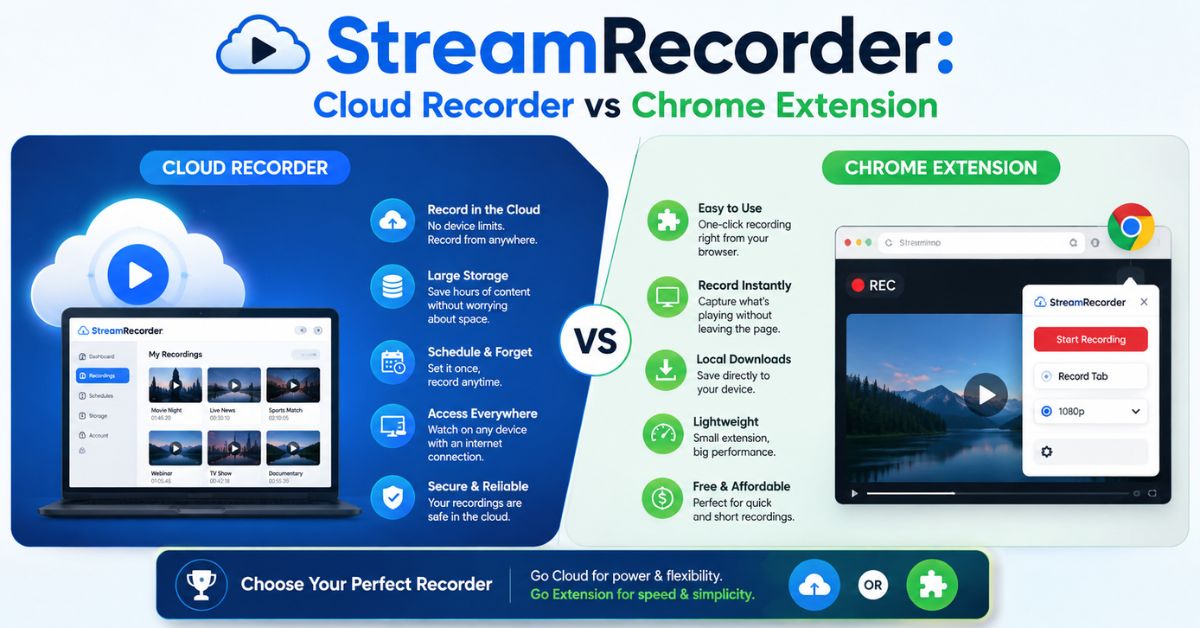
Searching for StreamRecorder can be confusing because the term is associated with more than one video-recording tool. One is StreamRecorder.io, a cloud-based service designed to automatically capture live broadcasts. Another is Stream Recorder, a Chrome extension built mainly for detecting and saving HLS or m3u8 video streams while you browse.
Although the names sound similar, the tools solve different problems. One focuses on automatic recording through remote servers, while the other works locally inside your browser. Understanding that distinction can save time and help you choose the right solution for recording a live broadcast, creating a personal archive, or saving compatible streaming media for authorized offline viewing.
What Is StreamRecorder?
StreamRecorder.io is a cloud-based automatic live stream recording service. Instead of requiring you to keep a browser window, computer, or mobile device running, the service monitors creators you add to your account. When a selected creator begins broadcasting, the platform can automatically start recording and place the captured broadcast in your online library.
The name can also refer informally to Stream Recorder – HLS & m3u8 Video Downloader, a separate Chrome browser extension. That extension detects compatible streaming media while it is playing in the browser and can process HLS segments into an MP4 file locally. It does not provide the same automatic cloud-monitoring workflow offered by StreamRecorder.io.
Here is the simplest distinction:
- StreamRecorder.io: automatic cloud recording and VOD archiving
- Stream Recorder Chrome extension: manual HLS/m3u8 and compatible MP4 capture
- Cloud service: can operate without leaving your device running
- Extension: performs its work locally through Chrome
- Best choice: depends on whether you need automation or browser-based capture
How StreamRecorder.io Works
StreamRecorder.io follows a relatively simple workflow. Users create an account, add the streamers or channels they want to follow, and allow the service to monitor them. When a tracked creator goes live, recording can begin automatically on remote infrastructure. Saved broadcasts then appear in the user’s library, where they can be watched through a built-in player or downloaded when available.
Because the recording takes place in the cloud, your computer does not need to remain powered on and your phone does not have to keep the live video open. This is especially useful when broadcasts begin unexpectedly, happen overnight, or occur while you are away. The current Android listing specifically says recording continues even when the user’s phone is off.
A basic workflow looks like this:
- Create or sign in to your StreamRecorder.io account.
- Add the creator or channel you want to monitor.
- Allow the platform to detect when the creator goes live.
- Access completed recordings from your cloud library.
- Watch the recording or download it when that option is available.
Supported Streaming Platforms
StreamRecorder.io currently advertises support across a broad collection of streaming services. Its FAQ lists Twitch, YouTube, Kick, AfreecaTV, Chzzk, FlexTV, TikTok, Pandalive, Douyin, TwitCasting, Bilibili, Douyu, Huya Live, LiveMe, Rumble, and additional supported services. The exact platform list can change as integrations are added or updated.
There is also a small difference between current official listings. The StreamRecorder.io FAQ describes support for 18 platforms, whereas its Google Play description currently refers to 15 platforms. For that reason, users who need support for one specific streaming service should confirm availability on the official website or app before subscribing.
| Use Case | Cloud Service Fit |
|---|---|
| Record Twitch lives automatically | Strong |
| Archive Kick broadcasts | Strong |
| Capture TikTok live sessions | Supported where available |
| Track several creators | Useful |
| Record while your PC is off | Yes |
| Access recordings remotely | Yes |
| Manually capture an HLS file | Browser extension may be better |
What Is the Stream Recorder Chrome Extension?
The Stream Recorder Chrome extension serves a different purpose. According to its current Chrome Web Store listing, it can save live or archived videos delivered using the common HLS/m3u8 format. It can also capture compatible MP4 video through its video-capture functionality. This makes it more useful for someone who has already opened a stream and wants to save compatible media manually.
The extension processes downloaded audio and video data locally and converts compatible captured content into MP4 without sending the processing task to an external server. Its listing states that this conversion occurs without re-encoding, helping preserve the quality of the source rather than performing a traditional lossy video conversion. Compatibility still depends on how the individual website delivers and protects its media.
Common terms associated with this tool include:
- HLS video downloader
- m3u8 downloader
- live stream recorder
- MP4 video capture
- browser video recorder
- streaming video downloader
- local video processing
Not every online video can or should be downloaded. Sites can use different delivery systems, authentication methods, access controls, or digital rights management. A browser extension designed for standard HLS content should not be assumed to work with every streaming website.
StreamRecorder.io vs Stream Recorder Chrome Extension
The biggest difference is automation versus manual capture. StreamRecorder.io is designed for people who know which creators they want to follow but may not know exactly when those creators will broadcast. Once configured, the cloud service can monitor those channels and record eligible live sessions automatically without requiring the user’s device to stay connected.
The Chrome extension is better suited to a different situation: the user is already browsing a page containing compatible streaming media and wants a local copy. Rather than monitoring creators around the clock, the extension detects HLS/m3u8 media during browsing and processes compatible video locally. Neither approach is universally better; they solve distinct recording problems.
| Feature | StreamRecorder.io | Chrome Stream Recorder |
| Recording method | Cloud-based | Browser-based |
| Automatic live detection | Yes | Not the main purpose |
| Device must stay active | No | Generally yes during capture |
| Cloud library | Yes | No |
| HLS/m3u8 capture | Platform handled | Core feature |
| MP4 output/download | Available | Available for compatible media |
| Best for | Following live creators | Saving compatible web streams |
| Installation | Web/app access | Chrome extension |
Which Tool Is Better?
Choose the cloud service when the main goal is to avoid missing live streams. For example, a creator you follow might start broadcasting at unpredictable times. Automatic monitoring is much more convenient than repeatedly checking their profile and manually starting a recorder.
Choose the Chrome extension when the stream is already available in your browser and uses a compatible format such as HLS/m3u8. This approach gives you more direct, local control over the captured file without requiring the same type of cloud archive.
How to Use StreamRecorder Safely
Technical ability to save a stream does not automatically grant permission to copy, redistribute, publish, or monetize it. Copyright belongs to the appropriate creator or rights holder unless another license applies. Streaming platforms can also establish their own terms concerning recording, downloading, reuse, and redistribution of videos, even when a technical tool is capable of capturing them.
The Chrome extension itself advises users to confirm copyright and permissions before downloading media. StreamRecorder’s Android listing similarly tells users to ensure they have permission before recording or sharing video and to comply with applicable laws and platform policies. Those warnings are important, particularly when recorded material belongs to another creator.
Recording your own broadcasts for backup is one straightforward use case. Researchers, creator teams, and organizations may also have legitimate archival needs, but they should still consider permissions, privacy, copyright, licensing, and applicable platform rules.
Which StreamRecorder Should You Choose?
The right option depends less on technical specifications and more on your workflow. If you want to track specific Twitch, Kick, TikTok, YouTube, Bilibili, Douyin, or other supported creators and automatically save qualifying live broadcasts, the cloud service is the more logical option. It removes the need to predict when a creator will start streaming.
If you are already watching a compatible HLS video and specifically need an m3u8 video downloader or browser-based recording tool, the Stream Recorder Chrome extension is the more focused solution. It detects supported media during browsing and handles compatible content locally instead of acting as a remote creator-monitoring service.
Use this quick decision guide:
Choose StreamRecorder.io if you want to:
- Automatically monitor creators
- Record streams while your device is off
- Keep recordings in a cloud library
- Follow creators across several supported streaming platforms
- Reduce the risk of missing unscheduled broadcasts
Choose the Chrome extension if you want to:
- Capture a compatible video already playing in Chrome
- Work with HLS or m3u8 streams
- Save supported media locally
- Convert compatible captured segments into MP4
- Avoid cloud processing for the extension’s conversion workflow
Conclusion
StreamRecorder can refer to two useful but fundamentally different approaches to recording online video. StreamRecorder.io is designed for automatic cloud recording and VOD archiving, making it useful when you follow creators whose live broadcasts may start without warning. The Chrome Stream Recorder extension is designed primarily for manually capturing compatible HLS/m3u8 and MP4 streaming media through the browser.
For most users, the decision comes down to one question: do you want automatic cloud recording or manual browser-based video capture? Choose according to your workflow, verify current platform compatibility, and always respect copyright, permissions, and the streaming service’s rules before recording or sharing someone else’s content.