
Amazon Vine Login: Step-by-Step Access Guide 2026
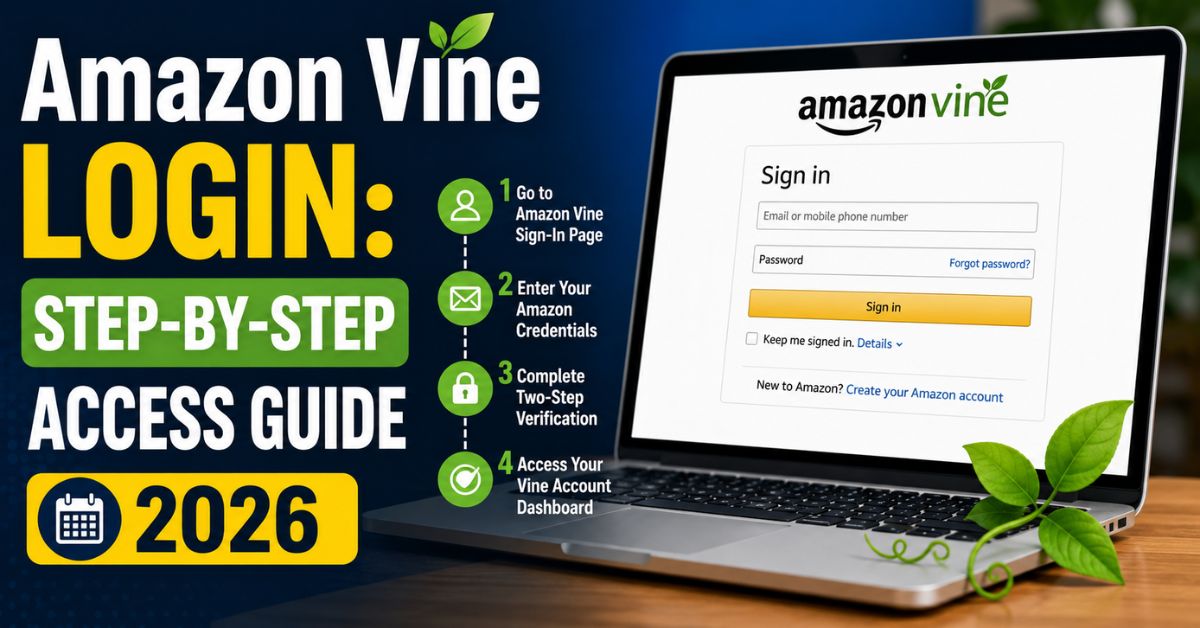
Getting the Amazon Vine Login right can feel confusing, especially if you’re new to the program or switching between devices. Amazon Vine gives selected reviewers free products in exchange for honest feedback, but the sign-in process isn’t always as simple as visiting Amazon’s main homepage. This guide walks you through exactly how to complete your Amazon Vine Login on desktop and mobile, what to do if you hit an error, and how sellers fit into the picture too.
Whether you’ve just received your invite or you’ve been a Vine Voice for years, knowing the correct login path saves time and frustration. We’ll also cover common mistakes that lock people out, so you can troubleshoot quickly instead of guessing.
What Is Amazon Vine and Who Can Log In
Amazon Vine is an invitation-only review program. Amazon selects reviewers based on the quality and helpfulness of their past reviews, not on request. If you haven’t received an official invite, there’s no application form or workaround that grants access, no matter how many products you’ve purchased or reviewed casually.
The Amazon Vine Login itself uses the same credentials as your regular Amazon shopping account. There’s no separate username or password to remember. This makes the process simple in theory, but people still get tripped up by using the wrong email address or expecting a standalone Vine website that functions independently from Amazon’s main ecosystem.
- Amazon Vine is by invitation only
- Your regular Amazon account credentials work for login
- No separate registration or application exists
- Eligibility is based on review history and helpful votes
How to Complete the Amazon Vine Login on Desktop
On a computer, the Amazon Vine Login process starts with visiting Amazon’s dedicated Vine portal for your country. Each region has its own version of the page, so U.S. members should use the American Amazon Vine portal, not a foreign storefront. Signing in here works exactly like logging into any other Amazon page.
Once you land on the portal, enter the email and password tied to the account that received the invitation. If your invite went to a secondary email address, that’s the one you must use, even if you rarely shop with it. Mixing up accounts is one of the most common reasons people think their Amazon Vine Login isn’t working.
Here’s the basic desktop process:
- Open your browser and go to the Amazon Vine portal for your country
- Enter the email address that received the Vine invitation
- Enter your Amazon account password
- Complete two-step verification if it’s enabled
- Confirm you land on the Vine Voices dashboard, not the standard homepage
How to Complete the Amazon Vine Login on Mobile
Mobile users often run into a different issue. Typing the direct portal link into a phone’s browser sometimes redirects to Amazon’s standard shopping homepage instead of the Vine dashboard. This happens because mobile browsers and the Amazon app handle certain URLs differently than desktop browsers do.
The more reliable method on mobile is searching within the Amazon Shopping App itself rather than relying on an external link. This avoids redirect issues entirely and takes you straight to the Vine Voices section tied to your logged-in account.
Follow these steps for a smoother mobile experience:
- Open the Amazon Shopping App on your phone
- Confirm you’re signed into the account that received the invite
- Type “Vine Voices” into the Amazon search bar
- Tap the first official Vine Voices result that appears
Amazon Vine Login for Different Countries
Amazon Vine operates separately in each country where it’s available, including the United States, Canada, the United Kingdom, Germany, France, Spain, Italy, and Australia. Your invitation only grants access to the Vine program in the country tied to your Amazon account, so a U.S. invite won’t work on the UK portal, and vice versa.
This regional separation trips up reviewers who shop across multiple Amazon marketplaces. If you maintain accounts in more than one country, always double-check which one actually received the Vine invitation before attempting to log in, since the wrong regional portal will simply show a restricted message.
| Country | Amazon Marketplace | Login Credentials Needed |
|---|---|---|
| United States | Amazon.com | US account email and password |
| Canada | Amazon.ca | CA account email and password |
| United Kingdom | Amazon.co.uk | UK account email and password |
| Germany | Amazon.de | DE account email and password |
| France | Amazon.fr | FR account email and password |
| Spain | Amazon.es | ES account email and password |
| Italy | Amazon.it | IT account email and password |
| Australia | Amazon.com.au | AU account email and password |
Fixing Amazon Vine Login and Access Errors
If you land on a page showing a restricted or invite-only message after attempting your Amazon Vine Login, it usually comes down to one of two causes. The first is signing in with the wrong Amazon account, which happens more often than you’d think, especially for households sharing devices. The second is simply not having received an invitation yet.
Amazon doesn’t offer a manual application process for Vine. The system automatically evaluates reviewers based on their review history and how many people found those reviews helpful. There’s no support ticket or customer service request that speeds this up or grants early access.
| Error Type | Likely Cause | Suggested Fix |
|---|---|---|
| Restricted or invite-only page | Wrong account logged in | Log out and sign in with the invited email |
| Restricted or invite-only page | No invitation received yet | Continue building review history and helpful votes |
| Redirect to homepage | Mobile browser link issue | Use in-app search instead of the direct link |
| Blank or error page | Temporary Amazon site glitch | Clear cache or try again later |
Quick troubleshooting checklist:
- Confirm you’re logged into the correct email address
- Try the in-app search method if using mobile
- Clear your browser cache if the page won’t load
- Wait and retry if Amazon’s site is experiencing issues
Amazon Vine Login for Sellers vs. Reviewers
Not everyone searching for an Amazon Vine Login is a reviewer. Sellers and merchants also interact with Vine, but through a completely different entry point. If you’re a business trying to enroll your products into the program, the reviewer-facing portal links won’t help you at all.
Instead, sellers need to access their Seller Central dashboard, head to the Advertising menu, and select Vine from there. This is a business tool for enrolling ASINs into the program, separate from the reviewer experience of browsing and requesting free items.
Reviewer vs. Seller access at a glance:
- Reviewers log in through the Vine Voices portal using shopper credentials
- Sellers log in through Seller Central, not the consumer-facing site
- Reviewers cannot enroll products; only sellers manage that
- Sellers cannot browse or claim products as a reviewer would
Tips to Maintain Vine Access After Login
Successfully completing your Amazon Vine Login is only the first step. Staying active in the program depends on maintaining a healthy review completion rate. Amazon expects Vine Voices to write reviews for a solid percentage of the products they request, and falling behind can affect your standing.
It also helps to understand that items received through Vine are considered taxable income in the U.S., typically reported through a 1099-NEC if you cross the relevant threshold. Keeping this in mind from the start avoids surprises later and keeps your participation in the program running smoothly year after year.
- Complete reviews promptly after receiving products
- Track your review completion percentage regularly
- Keep tax documentation in mind for higher-value items
- Avoid requesting more products than you can realistically review
Conclusion
The Amazon Vine Login process is straightforward once you know where to go: the correct country-specific portal on desktop, or an in-app search on mobile. Most access problems trace back to using the wrong account or not yet having an invitation, both of which are easy to identify once you know what to check. Whether you’re a reviewer managing your Vine Voices status or a seller enrolling products through Seller Central, understanding the right login path saves time and keeps frustration to a minimum. Bookmark the correct portal for your region, double-check your account email, and your Amazon Vine Login should work smoothly every time.